
Examples & screenshots
Each snippet below can replace Program.cs in the app from Getting started. They use the core package only. Output previews are generated from these snippets using Consoul.Capture at a fixed width; they show text and layout without terminal colors or animation.
Tables
Use a table to compare values at a glance. Markup colors individual cells in an interactive terminal.
using ConsoulLibrary;

var table = new Table()
    .RoundedBorder()
    .Width(48)
    .HideFooter()
    .AddColumn("Service")
    .AddColumn("State")
    .AddRow("API", "[green]Healthy[/]")
    .AddRow("Worker", "[yellow]Starting[/]");
AnsiConsole.Write(table);
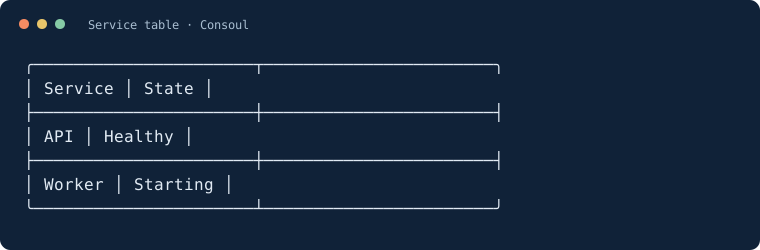
Table options, model binding, and selection →
Panels and markup
Frame a short summary with a title. Use markup for developer-authored status text.
using ConsoulLibrary;

Consoul.Panel(
    "[green]Build complete[/]\n3 projects compiled. Ready to deploy.",
    title: "Build summary",
    width: 48);
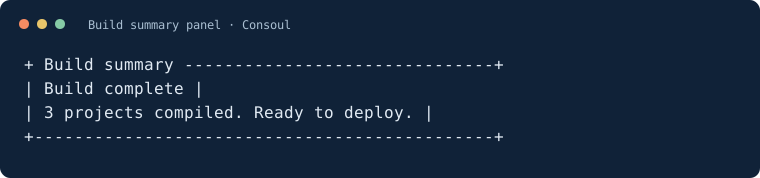
When inserting user input into markup, use MarkupLineInterpolated so brackets in values remain literal:
using ConsoulLibrary;

string project = "demo[1]";
Consoul.MarkupLineInterpolated($"[cyan]Building {project}[/]");
Output, styling, composition, and capture →
Task progress
Create a task for each unit of work and update it as work completes. This small demo uses delays to make progress visible; replace them with your application’s work.
using System.Threading;
using ConsoulLibrary;

Consoul.Progress(progress =>
{
    var build = progress.AddTask("Build", 3);
    var checks = progress.AddTask("Checks", 2);

    for (int i = 0; i < 3; i++)
    {
        Thread.Sleep(150);
        build.Increment(1);
    }
    build.Complete();
    checks.Increment(1);
    Thread.Sleep(150);
    checks.Complete();
});

The preview shows the final captured state. In a capable terminal, progress updates in place; redirected output may behave differently.
Status, spinners, live displays, and progress options →
Interactive menus
A dynamic view connects menu choices to actions. Run this in a terminal, choose an option by number, and use back to leave the menu.
using ConsoulLibrary;

Consoul.View("Developer tools")
    .Option("Say hello", () =>
    {
        Consoul.Write("Hello from Consoul!");
        Consoul.Wait();
    })
    .DescribeLastOption("Write a message and return to the menu.")
    .ShortcutLastOption("h")
    .Render();
Model-backed views and navigation →
A console app in practice
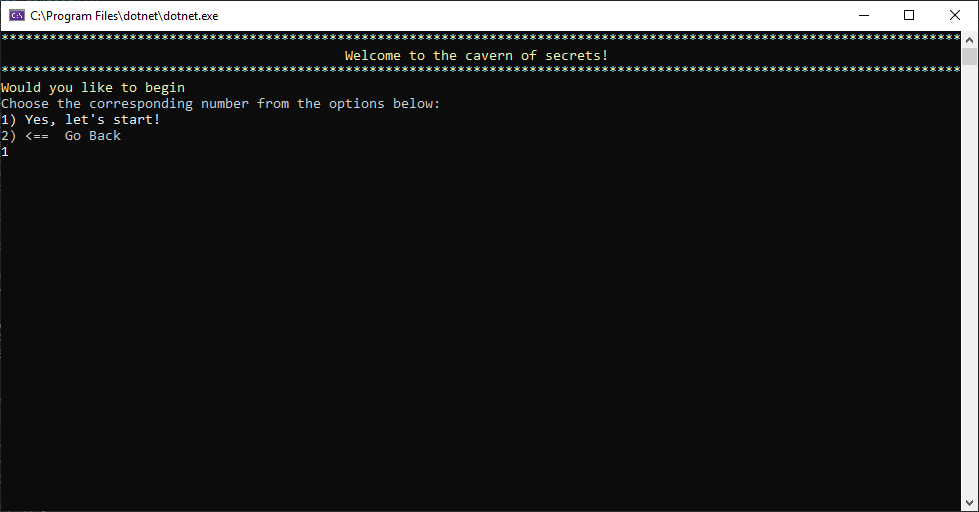
This original repository screenshot shows the Tiny Text Adventures sample running in a Windows console. It illustrates a menu-driven app; it is a legacy screenshot, not output from the 3.0 snippets above.
Reproduce the previews
The documentation sample runner compiles the C# snippets from this page, captures their actual rendered output, and writes the SVG previews. From the repository root:
dotnet run --project scripts/DocsExamples -- docs
The SVG files include selectable text and accessible descriptions. Terminal fonts, width, Unicode support, and color settings can change the appearance of a live app. See the known limitations.